

1. Pick an issue
Start at the top of Fix on Overview, or open Issues for the full list under To fix. Rows are in priority order, and each shows the place, the Kind, Calls and the share that ended badly under Bad. Filter by Technical, Flow or Content to find work for one person.- A Fix row that says “Outside your agent” has its fix with whoever runs that service, such as an API that answers slowly. Take the evidence to them; a change in your agent can only soften the effect.
- An Improve row is not a malfunction. It names a change that is yours to make and the number it moves.
- Rows under Cause not established are not ready to fix. See When the cause is not established.
2. Read the issue
The figures at the top say what you are deciding about: Calls (calls, callers and share of all calls), Ended badly, Confidence and Seen on. Some issues show Lasting harm and Checked instead. Then read, in order:- The place, under the title: a step, a tool or a transition. An issue placed on “the agent overall” has no single place to change, and is harder to act on.
- Cause: what the calls point to, such as “Waiting on lookup_vehicle” with how long it took.
- Suggested fix: one change to make. Treat it as a proposal to check against the calls, not an instruction.
3. Check the calls behind it
An issue is a hypothesis backed by calls. Before anyone changes the agent, read some of them:- Open three to five quotes under Evidence. Each opens its call at that moment.
- Use Recent calls, or View calls for the full list.
- Ask whether every call shows the same thing at the same place, whether it is behaviour you designed (a questionnaire that revisits a step on purpose), and whether it is the same change as another issue.
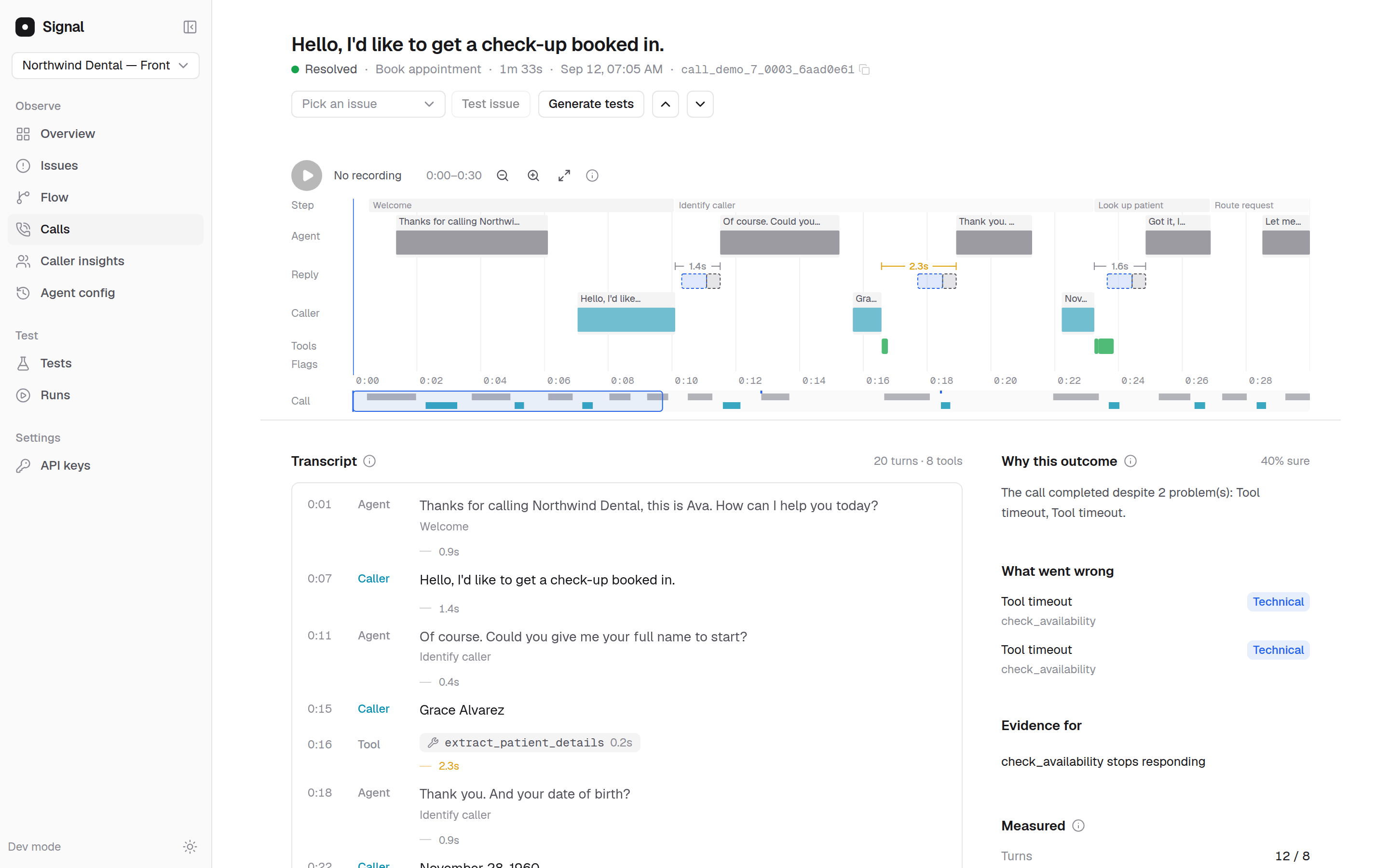
A call page on the demo agent, Northwind Dental. Evidence for lists the issues the call belongs to.
4. Decide the lane and the owner
The lane is where the cause lives, and it decides who makes the change:
The Kind tag is not the lane: Technical covers a misheard word (Hearing) and a failing lookup (Integrations), which are different fixes for different people.
Aim the change at the cause, not the symptom. If callers sit through 7 seconds of silence while three tools run one after another, a “one moment while I check” line shortens the silence the board measures, but the lookup still takes 7 seconds. That is a Speaking change to an Integrations problem.
5. Make the change in Retell
Make the change in Retell and publish it. Where you can, ship one change per version: a version that changes the prompt, a tool and the voice at once can still be compared, but you will not know which change did what. Set the issue to Fix deployed once it is live. When the new version changes the issue’s own step or tool, SignalMD sets it for you on an issue still marked Discovered. SignalMD notices the new version within about 10 minutes, or at once when you publish from Build.6. Confirm it worked
Before callers meet it, test it. Generate tests on the issue page proposes replays of its calls and variations of them, which you run against the new version. Tests run as text, so they cover Understanding, Flow and state, and Integrations; an issue that needs audio or timing cannot be tested this way yet, and SignalMD says so. See Test a fix. After it ships, wait out the grace period. The issue reads Measuring while the new version has too few calls or too few days to judge. Above the bars in By version, one sentence says whether the live version fixed it. It reads “Too early to say” until the new version has taken calls for the grace period (7 days by default), then says whether the new version fixed it, cut it, raised it or left it unchanged, or that there are too few calls to say yet. A fixed issue is tagged Fixed on v12 on Issues. See Did my fix work. For the whole agent, compare versions. The comparison for the change, such as v11 → v12 on Agent config, shows whether the change helped or hurt anything else. See Compare versions. You do not have to mark the issue Resolved: once your agent has taken calls for the grace period without it, SignalMD resolves it. A call after that which shows it again is noted (“Seen again on Oct 9; the rate has not risen”) and leaves it resolved. It turns Regressed only when its rate rises beyond normal variation over its rate before the fix; calls from before your fix never count.When the cause is not established
Sometimes the calls show that something went wrong but not why. SignalMD lists the pattern under Cause not established on Issues, heads the issue page What was seen and What to check, and proposes no change. That is a real result, not a gap to fill with a guess.- Read the calls for what they share: the same step, tool, kind of caller or time of day.
- Check In the configuration for a transition with no fallback or a variable that is never set, as a lead to check against the calls.
- Wait for more calls. SignalMD keeps reading the pattern as calls arrive, and it moves to Fix once SignalMD establishes a cause.
- If you try a fix anyway, say so in your team’s tracker, so nobody later reads the version comparison as proof of a cause.
Worked example
This example is illustrative. The agent, tool and numbers are made up to show the steps.
- Waiting on lookup_vehicle, kind Technical, place: tool lookup_vehicle, with “Outside your agent” under the title.
- Calls 31, “27 callers, 6.2% of all calls”. Ended badly 39%. Confidence 86%. Seen on v11.
- Cause: “Waiting on lookup_vehicle. lookup_vehicle took 9.2s.”
- Suggested fix: measure the tool at the times these calls happened, make it faster or return a partial result, and have the agent say a short line while it runs.
Next steps
Test a fix
Replay production calls against a change before it ships.
Compare versions
Read a version comparison and decide what to do next.